Quick Answer: If you can fix it without opening the monitor and the issue involves an external accessory (cable, sensor, electrode, cuff), troubleshoot it yourself. If the problem persists after replacing the accessory, involves internal hardware, produces unusual smells or sounds, or shows unrecognized error codes — call Biomed. Clinical-engineering field data suggests the large majority of bedside patient monitor issues are accessory-related and can be resolved by clinical staff in a few minutes.
📚 This article is part of the Hospital Monitor Reading & Accessories Guide series.
Related: Monitor Not Turning On · Display Problems · No Reading Troubleshooting
Your patient monitor displays "Leads Off." The SpO2 sensor reads 0%. The NIBP cuff won't inflate. The screen is flickering. Your first thought: "Should I try to fix this, or do I call Biomed?"
It is a question clinical staff face multiple times per shift, and the answer matters. Calling Biomed for every loose electrode wastes their time and delays response to genuine hardware failures. But attempting to fix an internal power-board issue yourself creates safety risks and can void the warranty. Getting this decision right keeps patients safer, keeps monitors running, and keeps Biomed available for issues that truly need their expertise.
This guide provides a clear, practical decision framework based on more than 20 years of MedLinket's field experience supporting patient monitor accessories across 2,000+ hospitals in 110+ countries, combined with published clinical-engineering field data on where bedside monitor faults actually originate.
The 30-Second Decision Rule
When a patient monitor issue occurs, use this rapid mental checklist before deciding your next step:
| Step | Question | If YES | If NO → Next |
|---|---|---|---|
| 1 | PATIENT FIRST: Is the patient in clinical distress? | Address the patient. Call the care team. Equipment is secondary. | → Step 2 |
| 2 | SAFETY CHECK: Burning smell? Sparks? Exposed wires? Cracked housing? | STOP. Do NOT touch. Remove from service. Call Biomed immediately. | → Step 3 |
| 3 | EXTERNAL OR INTERNAL? Is the issue with a cable, sensor, electrode, cuff, or hose? | TROUBLESHOOT YOURSELF (Green Zone) | Internal (screen, power board, module, software) → CALL BIOMED (Red Zone) |
| 4 | Did your self-troubleshooting fix it within 5 minutes? | ✅ Document and resume monitoring. | Call Biomed. Report what you tried. |
This framework captures the essential logic: patient safety first, then safety hazards, then scope of repair. Everything that follows expands on this decision tree with specific examples.
Green Zone: Issues You Can (and Should) Handle Yourself Handle Yourself
These everyday issues account for the vast majority of bedside equipment calls. Resolving them yourself saves time and keeps Biomed available for real hardware problems. Published clinical-engineering field data is consistent on this point: most "signal loss" errors trace back to loose, dirty, or misplaced sensors — not the monitor itself.
| Issue | Likely Cause | What to Do |
|---|---|---|
| "Leads Off" alarm | Electrode dried out, leadwire disconnected, or poor skin contact | Replace ECG electrodes (change every 24h). Check leadwire connections. Reprep skin. |
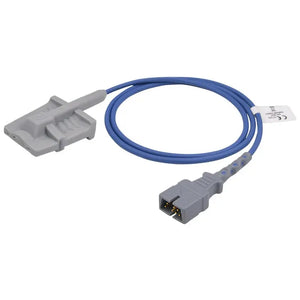
| SpO2 reads 0% or "---" | SpO2 sensor disconnected, misplaced, or damaged | Reconnect sensor. Reposition on different finger. Check for nail polish. Try a known-good sensor. |
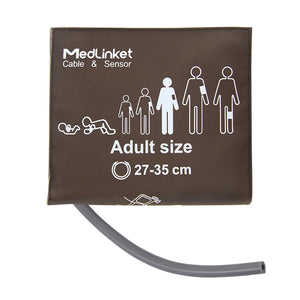
| NIBP "Measurement Failed" | Wrong cuff size, kinked hose, patient movement, or air leak | Verify cuff size and connection. Check hose for kinks. Retry when patient is still. |
| Noisy/artifact-filled ECG | Poor electrode contact, patient movement, 50/60Hz interference, or worn ECG cables | Fresh electrodes, good skin prep. Change filter mode. See ECG Numbers guide for waveform interpretation. |
| No temperature reading | Temperature probe disconnected or not in contact with patient | Reconnect. Reposition probe. Try a replacement probe. |
| False alarms (repeated, clinically insignificant) | Default alarm limits, poor accessory contact, or signal quality issues | Adjust alarm limits to patient baseline. Replace accessories. Improve sensor contact. |
| Monitor appears dead | Loose power cord, dead battery, tripped outlet, or firmware lock-up | Follow the power-on troubleshooting guide — outlet → cord → battery → fuse → power reset. |
| No EtCO2 waveform | Sampling line kinked, water trap saturated, or adapter disconnected | Replace sampling line. Empty or replace water trap. Check adapter cable connection. |
💡 The Swap Test — Your Best Friend: The fastest way to determine whether the problem is the accessory or the monitor is to swap the suspect accessory with a known-good one. If the problem disappears, you have found your culprit. Keep a small stock of spare SpO2 sensors, ECG cables, and NIBP cuffs on your unit. For guidance on what to stock, see our Accessories by Parameter guide.
Red Zone: When to Call Biomed Immediately Call Biomed
These situations involve potential safety hazards, internal hardware failures, or issues beyond the scope of user-serviceable components. Do not attempt to resolve these yourself.
| Issue | Why It Is Biomed-Only | What to Do While Waiting |
|---|---|---|
| Burning smell, smoke, or visible burn marks | Internal component failure — fire hazard and electrical safety risk | Unplug immediately. Remove from patient area. Deploy backup monitor. |
| Cracked display or leaking LCD | Chemical exposure risk. See Display Problems guide. | Remove from service. Avoid touching any fluid. Label "Do Not Use." |
| Monitor powers on → immediately shuts off (looping) | Power supply board failure. See Monitor Not Turning On guide. | Unplug. Deploy backup. Document cycle behavior. |
| Error codes not in user manual | Internal firmware or module failure requiring OEM diagnostic software | Note exact error code. Take a photo. Report to Biomed. |
| Screen on but completely frozen | Main board lock-up beyond user-level reset | Try one full power reset first. If it persists, call Biomed. See Frozen Screen troubleshooting. |
| Parameter inaccurate AFTER replacing all accessories | Internal module calibration failure | Do not rely on the parameter clinically. Use an alternative measurement method. |
| Electrical tingling when touching the housing | Ground fault — serious electrical safety hazard | Stop using immediately. Do NOT let patients touch it. Call Biomed and Facilities. |
| Exposed internal wiring or damaged housing | Physical damage compromises electrical insulation | Remove from service immediately. Tag "Out of Service." |
🛑 The Absolute Rule: Never open the monitor housing. Patient monitors operate at voltages that can cause serious injury. The internal components are not user-serviceable. Opening the housing voids the manufacturer warranty and violates most hospital equipment policies. If the fix requires anything inside the casing, it is Biomed's job.
Yellow Zone: Try First, Escalate if Needed Try First
Some issues sit between the Green and Red zones. Attempt a basic fix first, but set a time limit — if not resolved within 5–10 minutes, escalate to Biomed.
| Issue | Your First Step | Escalate If... |
|---|---|---|
| Intermittent parameter dropout (SpO2, ECG, or NIBP works sometimes) | Replace the suspect cable/sensor. Check all connections for corrosion. | Problem persists with new accessories. Likely an internal port or module issue. |
| Display flickering or dimming | Check power cord. Try a different outlet. Adjust brightness. See Display Problems guide. | Flickering continues with stable power. Likely a backlight or display board issue. |
| Alarm tones incorrect or not sounding | Check alarm volume and enable status. See False Alarm Prevention. | Alarms configured correctly but still not functioning. Speaker or board failure. |
| Monitor battery drains abnormally fast | Ensure monitor is plugged in when stationary. Check battery age (2–4 year lifespan). | Battery within expected lifespan but will not hold charge. Charging circuit needs service. |
Biomed vs IT: Where to Send the Ticket
One of the most common sources of frustration is sending a service request to the wrong department.
| Issue Type | Call Biomed | Call IT |
|---|---|---|
| Monitor won't power on | ✅ | |
| Parameter readings inaccurate | ✅ | |
| Display broken, flickering, or frozen | ✅ | |
| Alarm not sounding or malfunctioning | ✅ | |
| Accessory port not working | ✅ | |
| Preventive maintenance due | ✅ | |
| Monitor not showing on central station | ✅ (start here) | ✅ (if network-related) |
| Patient data not syncing to EMR/HIS | ✅ | |
| Wi-Fi/network connectivity issue | ✅ | |
| Software/firmware update needed | ✅ (device side) | ✅ (if server/network side) |
The most confusing scenario is when a patient monitor works at the bedside but does not appear on the central station. Start at the bedside: if the monitor is functional locally, the issue is likely network-side (IT). If the monitor itself is malfunctioning, start with Biomed.
Real-World Scenarios: Test Your Judgment
Scenario 1: SpO2 That Keeps Dropping to 85% — Handle Yourself ✅
A night-shift nurse notices SpO2 readings repeatedly dropping to 85% on an adult patient who appears comfortable and breathing normally. The pleth waveform is poor and irregular.
Action: This is almost certainly a sensor issue. Reposition the SpO2 sensor, try a different finger, check for nail polish. If the sensor is old, replace it with a compatible replacement. Good pleth waveform with normal reading = case closed.
Scenario 2: Monitor Smells Like Burnt Plastic — Call Biomed 🛑
During a routine check, a nursing assistant notices a faint burning smell from the back of a patient monitor. No visible smoke, but the smell is persistent.
Action: Unplug immediately. Do not investigate. Move patient to a backup monitor. Tag unit "Do Not Use — Burning Smell" and call Biomed.
Scenario 3: NIBP Fails Three Times in a Row — Handle Yourself ✅
The NIBP keeps displaying "Measurement Error" on a post-surgical patient.
Action: Check the blood pressure cuff size — an incorrect size is the most common cause. Inspect the hose for kinks. Place on bare skin. Ensure the artery marker aligns with the brachial artery. If the patient has an arrhythmia (visible on ECG), oscillometric NIBP may inherently struggle — consider manual BP.
Scenario 4: ECG Shows Flatline, But Patient Is Awake — Handle Yourself ✅
The ECG waveform shows asystole, but the patient is awake, alert, and has a palpable pulse.
Action: This is an ECG cable or electrode problem, not a cardiac emergency. Check all electrode connections. The trunk cable may be disconnected, or a leadwire may have detached. Replace electrodes and ensure secure connections. See the ECG Leads Off Alarm guide for the full 6-step fix. (Always confirm the patient is genuinely stable before concluding the flatline is technical.)
Scenario 5: Error Code "E-47" After Power-On — Call Biomed 🛑
After a power reset, the monitor displays "E-47" and will not load. This code is not in the user manual.
Action: Document the code, take a photo, call Biomed with brand, model, serial number, and exact error code. Deploy backup monitor. See Monitor Not Turning On for related power troubleshooting.
How to Report an Issue to Biomed (The 5-Point Ticket)
The quality of your service request directly affects how fast Biomed can resolve the issue. Hospitals with detailed equipment logs tend to resolve patient monitor issues faster, because the technician arrives knowing the model, the symptom, and what has already been ruled out. Include these five data points every time:
| # | Category | What to Include |
|---|---|---|
| 1 | Device Identification | Brand, model (e.g., Philips IntelliVue MX800), asset/serial number, room and bed number |
| 2 | Symptom Description | What exactly is happening? When did it start? Constant or intermittent? Any error codes? (Photo if possible) |
| 3 | What You Already Tried | Replaced cable/sensor? Power reset? Different outlet? Swap test with known-good accessory? |
| 4 | Clinical Urgency | Patient currently on this monitor? Backup available? ICU/critical care setting? |
| 5 | Contact Information | Your name and role, best callback number, best time to access the equipment |
💡 Pro Tip: Keep a dedicated equipment log at each nursing station. Document every issue, what was tried, and the outcome. This history helps Biomed spot recurring patterns — like a monitor that keeps losing SpO2 (port failure) or a room that keeps tripping power issues (electrical infrastructure).
The Accessory Factor: Why Quality Cables and Sensors Prevent Service Calls
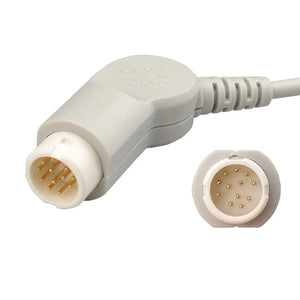
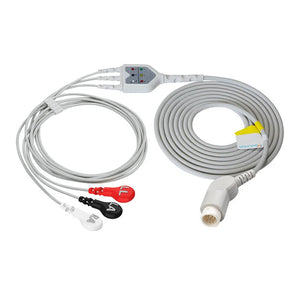
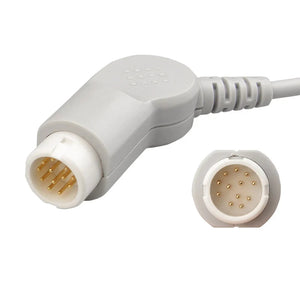
A significant share of preventable Biomed calls trace back to worn, damaged, or low-quality monitoring accessories. Frayed ECG lead wires cause intermittent "Leads Off" alarms. Aging SpO2 sensors produce false low-reading alerts. Cracked NIBP hoses cause air leaks that trigger measurement failures.
Proactive accessory replacement — based on a defined replacement schedule rather than waiting for failure — is one of the most effective ways to reduce both false alarms and unnecessary Biomed calls.
| Accessory | Replacement Interval | Signs It Needs Replacing Now |
|---|---|---|
| SpO2 Sensors (reusable) | Every 12 months | Cracked housing, weak LED, intermittent readings, discolored window |
| ECG Trunk Cables | Every 2–3 years | Intermittent signal loss, visible fraying, loose connector fit |
| ECG Leadwires | Every 6–12 months | Corroded snaps, broken clips, intermittent "Leads Off" with good electrodes |
| ECG Electrodes (disposable) | Every 24 hours on patient | Peeling edges, dried gel, opened >7–10 days ago |
| NIBP Cuffs (reusable) | Every 12–18 months | Air leaks, faded markings, stiff bladder, Velcro wear |
| NIBP Hoses | Every 2–3 years | Kinks that won't straighten, cracking, loose connectors |
| Temperature Probes (reusable) | Every 12–24 months | Readings drift, slow response, cable damage |
| EtCO2 Sampling Lines | Every 24 hours (disposable) | Visible moisture, kinked or blocked line |
When choosing replacement accessories, use the 5-step cable identification method to verify compatibility with your specific monitor. Using incompatible or uncertified accessories can cause measurement errors and, in rare cases, damage internal ports — turning a simple accessory replacement into a Biomed call.
About MedLinket — Reducing Unnecessary Service Calls Since 2004
MedLinket (Shenzhen Med-Link Electronics Tech Co., Ltd) has specialized in patient-monitoring accessories — SpO2 sensors, ECG cables and leadwires, NIBP cuffs and hoses, IBP transducers, and temperature probes — since 2004. The company holds 33 NMPA Class II registrations and is certified to ISO 13485:2016 and MDSAP; its accessories are FDA 510(k) cleared and CE marked under the EU MDR (2017/745). MedLinket operates a dual-factory footprint in Shenzhen (HQ) and Shaoguan, supplying 2,000+ hospitals across 110+ countries, with accessories compatible with 30+ patient-monitor brands. Every shipment undergoes outgoing inspection, and the company carries product-liability insurance providing coverage up to USD 5 million.
MedLinket's over-temperature-protection SpO2 sensors integrate a temperature sensor at the probe: if the skin temperature at the sensor site exceeds 41°C, the probe stops operating and triggers the monitor alarm, then automatically resumes SpO2 monitoring once the temperature falls back below 41°C — a design intended to reduce the risk of long-duration probe-site burns. (Monitor and competitor brand names referenced in this article are for compatibility identification only and imply no OEM, affiliation, or endorsement relationship.)
| 🏭 Founded | 2004 · Shenzhen, China |
| 🏭 Manufacturing | Dual-factory footprint (Shenzhen HQ, Shaoguan) · 2,800+ molds · 10,000+ product types |
| 📋 Certifications | ISO 13485:2016 · FDA 510(k) cleared · CE marked under EU MDR (2017/745) · NMPA Class II (33) · MDSAP |
| 🌍 Global Reach | 110+ countries · 2,000+ hospitals · 30+ compatible monitor brands |
| 🔬 Quality | Outgoing inspection on shipments · product-liability insurance up to USD 5M |
| 🛡️ Safety design | Over-temperature-protection SpO2 sensors (probe stops & alarms above 41°C, auto-recovers below 41°C — designed to reduce burn risk) |
| 🔗 Compatibility | Philips, GE, Mindray, Dräger, Masimo, Nellcor, Nihon Kohden, and more |
Quick-Reference Wallet Card
Clip this cheat sheet to your badge or tape it to the nursing station.
| ✅ FIX IT YOURSELF if: | 🛑 CALL BIOMED if: | 💻 CALL IT if: |
|---|---|---|
| Issue involves external accessory (cable, sensor, electrode, cuff, hose) | Burning smell, smoke, sparks, or exposed wires — UNPLUG FIRST | Monitor works locally but not on central station |
| Replacing or repositioning the accessory resolves the problem | Problem persists after replacing all external accessories | Patient data not syncing to EMR |
| You can fix it in under 5 minutes without opening the monitor | Error codes not in the user manual | Wi-Fi or network connectivity problems |
| A power reset restores normal function | Display cracked, white screen, or garbled image | — |
| — | Monitor in a power-on/off loop | — |
| — | Any issue requiring the housing to be opened | — |
Frequently Asked Questions
Q: What patient monitor problems can nurses fix without calling Biomed?
Nurses and clinical staff can safely handle: replacing ECG electrodes, repositioning SpO2 sensors, reconnecting loose cables, adjusting alarm limits, replacing NIBP cuffs, performing power resets, changing telemetry batteries, and basic skin preparation. Clinical-engineering field data suggests the large majority of bedside equipment issues are accessory-related and resolvable at the bedside in minutes.
Q: When should I immediately call Biomed for a patient monitor issue?
Call Biomed immediately for: burning smell or visible burn marks, cracked or leaking displays, repeated power-on/off cycling, error codes not in the user manual, exposed internal components, physical housing damage, persistent parameter inaccuracy after accessory replacement, or electrical tingling when touching the housing.
Q: How should I describe a patient monitor problem to Biomed?
Provide five data points: (1) monitor brand, model, and asset/serial number, (2) exact symptoms and when they started, (3) whether intermittent or constant, (4) what troubleshooting you already tried, (5) clinical urgency — is a patient currently on this monitor? This structured report helps Biomed prioritize and arrive prepared.
Q: Can troubleshooting a patient monitor myself void the warranty?
Basic external troubleshooting — replacing cables, sensors, electrodes, cuffs, and performing power resets — does not void the warranty. What can void it: opening the monitor housing, attempting internal repairs, or using non-compatible accessories that cause damage. Stay within the user manual's defined scope of user-serviceable items.
Q: What is the difference between calling Biomed and calling IT?
Call Biomed for hardware and clinical performance issues: monitor not powering on, inaccurate readings, broken displays, alarm malfunctions, accessory port failures. Call IT for network and data issues: central station connectivity, EMR data sync, Wi-Fi problems.
Need Compatible Replacement Accessories?
Tell us your monitor brand and model — we will confirm compatibility and provide pricing within 1 business day. Free samples available for evaluation.
Browse SpO2 Sensors → Browse ECG Cables →
📧 shopify@medlinket.com · 💬 WhatsApp: +852 6467 3105
This article is part of MedLinket's Hospital Monitor Reading & Accessories Guide. Last reviewed by the Biomedical Engineering Department, MedLinket Clinical Education Team, on .