Quick Answer: If your patient monitor screen is blank, first check the power source—verify the outlet works, inspect the power cord, and check the battery level. For flickering screens, check for electromagnetic interference from nearby equipment and loose power connections. For frozen displays, try a soft reboot (hold power button 10–15 seconds). If any display problem persists after basic troubleshooting, tag the monitor out of service and call Biomed—do not use a monitor with unreliable display output for patient care.
📚 This article is part of the Hospital Monitor Reading & Accessories Guide series.
Related: Monitor Shows No Reading · Monitor Not Turning On · When to Call Biomed
A patient monitor that won't display anything is an entirely different problem from one that shows dashes on a single parameter. When the screen itself goes blank, starts flickering, or freezes completely, you have moved beyond an accessory-related no-reading issue into the monitor's display hardware, power system, or main control board. The good news? Many display problems have surprisingly simple causes—an unplugged power cord, a depleted battery, or a brightness setting turned all the way down.
This guide covers the three most common display failures on hospital patient monitors: blank/black screens, flickering or distorted displays, and frozen screens. For each, we walk through what bedside clinicians and BMETs should check, what can be fixed on the spot, and what requires an engineering service call.
Estimated Time: 2–10 minutes | Difficulty: Beginner to Intermediate | When to Escalate: Any display problem that persists after power and reboot checks
Table of Contents
- Three Types of Display Problems at a Glance
- Blank / Black Screen: Troubleshooting
- Flickering / Distorted Display: Troubleshooting
- Frozen / Unresponsive Screen: Troubleshooting
- When to Fix It Yourself vs. Call Biomed
- Preventive Measures: Keeping Your Monitors Healthy
- The Role of Accessories in Monitor Stability
- Frequently Asked Questions
Three Types of Display Problems at a Glance
Understanding which category your display problem falls into helps you choose the right troubleshooting path immediately.
↔ Swipe to see the full table
| Problem Type | What It Looks Like | Most Common Cause | Severity |
|---|---|---|---|
| ⬛ Blank / Black Screen | Monitor appears completely dead—no image, no backlight, possibly no indicator lights | Power issue (outlet, cord, battery, fuse) | Medium–High |
| 📺 Flickering / Distorted | Screen turns on but flashes, has lines, shows color distortion, or brightness fluctuates | EMI, loose cable, failing backlight | Medium |
| 🧊 Frozen / Unresponsive | Screen displays an image but numbers and waveforms stop updating; touch controls unresponsive | Software or module hang | High (deceptive) |
⚠️ Patient Safety First: Whenever a patient monitor display fails, your first action is to ensure continuous monitoring coverage. Move a backup monitor to the bedside or assign staff for manual vital sign checks. A monitor you cannot see is a monitor that cannot protect your patient. If the monitor won't power on at all, see our dedicated Monitor Not Turning On guide for step-by-step power troubleshooting.
Blank / Black Screen: Troubleshooting
Power-related issues account for the vast majority of "dead monitor" calls received by biomedical engineering departments. As experienced BMETs on clinical engineering forums consistently report: "Nine times out of ten, it's the outlet." Before assuming hardware failure, work through these checks systematically.
↔ Swipe to see the full table
| Step | What to Check | What You Are Looking For | Solution |
|---|---|---|---|
| 1 | Power outlet | Is the wall outlet actually live? Plug in another device to test. | Try a different outlet. Check if the circuit breaker has tripped. |
| 2 | Power cord | Is the cord firmly seated at both ends? Look for visible damage, fraying, or bent prongs. | Reseat the cord. Replace if damaged. Never use a damaged power cord. |
| 3 | Power button | Some monitors require a long press (5+ seconds). Is the switch in the correct position? | Press and hold the power button for 5–10 seconds. Check for a physical toggle on the back panel. |
| 4 | Battery status | For portable monitors, has the internal battery been depleted? | Connect to AC power and wait 5–10 minutes before powering on. If battery is swollen or hot, do not use—replace immediately (fire hazard). |
| 5 | Brightness setting | Has someone turned brightness all the way down during a night shift? | Press brightness-up buttons, or shine a flashlight at the screen at an angle—if you can faintly see the display, the backlight or brightness is the issue. |
| 6 | Indicator LEDs | Do any LEDs illuminate when the power button is pressed? | LEDs on but screen dark = display/backlight failure (Biomed). No LEDs at all = power supply or fuse issue (Biomed). |
| 7 | Fuse | Some models have a user-replaceable fuse near the power inlet. | If your facility protocol allows and you are trained, replace with the correct rating. Otherwise, call Biomed. |
Pro Tip from the Field: A white or washed-out screen (backlight on but no data visible) is a different problem from a fully black screen. A white screen typically means the display panel is receiving power from the inverter but the main control board is not sending a video signal. If your monitor has a VGA output port on the back, try connecting an external display—if the external display works, the monitor's built-in screen or its internal ribbon cable needs repair. This is a Biomed-level fix.
For complete power troubleshooting including UPS checks and battery replacement guidance, see the companion guide: Patient Monitor Not Turning On: Step-by-Step Troubleshooting.
Flickering / Distorted Display: Troubleshooting
A flickering patient monitor makes waveform interpretation unreliable and can trigger eye strain during long shifts. Flickering ranges from subtle brightness fluctuations to dramatic screen flashes with visible lines or color distortion. The cause often originates outside the monitor itself.
↔ Swipe to see the full table
| Possible Cause | How to Identify | Solution |
|---|---|---|
| Loose or damaged power cord | Flickering stops or changes when you wiggle the power cord at the monitor end. | Reseat firmly. Replace if worn, frayed, or connection feels loose. |
| Electromagnetic interference (EMI) | Flickering started after nearby high-current equipment was turned on (electrosurgical units, imaging equipment). Present only in certain rooms. | Move the monitor away from the suspected source. Ensure proper grounding. In the OR, set ECG filter modes to "Surgery" to reduce interference on waveforms. |
| Failing backlight or inverter | Screen dims periodically, flickers with an orange or pink tint, or goes dark momentarily. More common in older LCD monitors. | Hardware degradation. Tag for Biomed service—backlight or inverter board replacement needed. |
| Loose internal display cable | Flickering changes when you gently press on the bezel (frame). Intermittent and position-dependent. | Do not open the monitor. Tag for Biomed—a loose ribbon cable inside requires professional repair. |
| Unstable power supply | Flickering occurs across multiple monitors on the same circuit. May coincide with dimming room lights. | Report to Facilities Engineering. The circuit may be overloaded or the UPS failing. |
| Overheating | Monitor running continuously in a warm environment. Ventilation slots blocked by equipment or curtains. | Clear ventilation openings. Power off for 15–20 minutes to cool. If recurring, Biomed should check internal fans. |
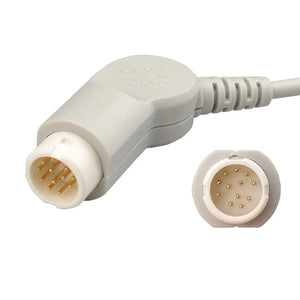
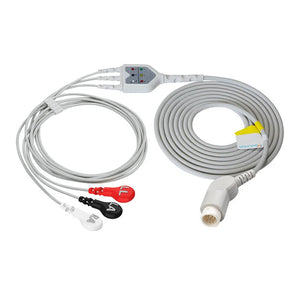
In clinical environments, electromagnetic interference deserves special attention. The same electrical environment that contains ECG cables, IBP transducers, infusion pumps, and electrosurgical units creates a complex electromagnetic landscape. A monitor that flickers only in certain locations may be responding to environmental EMI rather than experiencing an internal fault—the same type of interference that causes false alarms on ECG monitoring parameters. Properly shielded cables with the correct in-line resistance—such as a defib-proof ECG cable built to the monitor's 1 KΩ specification—help keep waveform inputs clean in these electrically noisy rooms.
Frozen / Unresponsive Screen: Troubleshooting
A frozen monitor display is arguably the most dangerous display problem because it is deceptive. The screen looks normal at first glance, showing numbers and waveforms. But those numbers stopped updating seconds, minutes, or even longer ago. A frozen display showing an SpO2 of 98% could be masking a patient whose actual saturation has dropped to 82%.
How to Recognize a Frozen Display
Frozen screens are not always immediately obvious. Watch for these signs:
| Sign | What It Looks Like |
|---|---|
| Waveforms stop scrolling | The ECG trace, SpO2 pleth wave, or respiratory waveform is static—no movement across the screen. This is the most reliable indicator. |
| Numeric values unchanging | Heart rate, SpO2, and other values remain exactly the same—normal physiology causes small fluctuations. |
| Clock is stopped | The on-screen clock shows a time that no longer matches the actual time. |
| Touch screen unresponsive | Tapping or swiping produces no reaction. Menu buttons do not work. |
| Alarms are silent | Despite parameter values that would normally trigger alarms, no alarms sound—the alarm system is frozen along with the display. |
Step-by-Step Recovery
| Step | Action | Details |
|---|---|---|
| 1 | Assess the patient manually | Check pulse, breathing, and responsiveness. You cannot rely on any data from a frozen monitor. Take manual vital signs. |
| 2 | Bring a backup monitor | Ensure the patient has continuous monitoring coverage before troubleshooting. |
| 3 | Try a soft reboot | Press and hold the power button for 10–15 seconds until the monitor shuts down. Wait 10 seconds, then power on. This resolves most software hangs. |
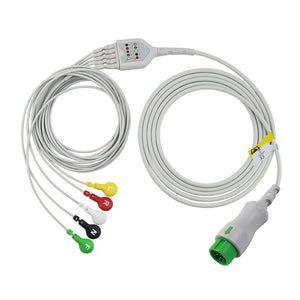
| 4 | Disconnect and reconnect accessories | A faulty SpO2 sensor, ECG cable, or other accessory feeding corrupted data can cause a module hang. Disconnect all patient monitor accessories, reboot, and reconnect one at a time. |
| 5 | Check for software update notifications | Some monitors freeze during or after a failed firmware update. Note any error messages for Biomed. |
| 6 | Document and report | Record time, circumstances, and error codes. Recurring freezes indicate a systematic fault that Biomed must investigate. |
⚠️ Critical: A frozen screen during a code blue or active resuscitation is a worst-case scenario. Your facility should have a protocol for immediate monitor substitution during emergencies. Conduct drills that include "monitor failure" scenarios so your team practices switching to backup equipment under pressure.
When to Fix It Yourself vs. Call Biomed
Display problems occupy different territory than accessory-related issues. While no-reading problems on individual parameters are usually accessory fixes, and "Leads Off" alarms resolve with electrode replacement, display problems more often involve the monitor's internal hardware.
| ✅ You Can Fix at the Bedside | 🔴 Call Biomed Immediately |
|---|---|
| Power cord unplugged or loose | Blank screen with indicator LEDs on (internal display failure) |
| Wall outlet not working (try another) | White or washed-out screen (main control board issue) |
| Brightness turned down too low | Flickering that persists regardless of power source or location |
| Battery depleted on portable unit | Repeated freezing on the same unit after reboots |
| Frozen screen resolved by reboot | Swollen or hot battery |
| Flickering caused by identifiable EMI source that can be relocated | Burned smell, sparking, or visible damage |
When reporting to Biomed, include: the monitor brand and model, the exact symptom (blank/flicker/freeze), when it started, whether it is intermittent or constant, what you already tried, and any error codes. Well-documented reports help identify fleet-wide issues—multiple monitors of the same model with similar symptoms could indicate a batch defect or software update issue.
For a comprehensive decision framework covering all troubleshooting scenarios, see our guide: When to Call Biomed vs. Troubleshoot Yourself.
Preventive Measures: Keeping Your Monitors Healthy
Monitor display failures are often the end result of gradual degradation that could have been caught earlier. These preventive practices reduce display-related downtime:
1. Scheduled preventive maintenance (PM). Most patient monitor manufacturers recommend annual or semi-annual PM inspections. PM should include power supply testing, battery health assessment, display calibration checks, and connector integrity verification. Hospitals that adhere to strict PM schedules report significantly lower rates of unplanned downtime.
2. Battery management. Internal batteries degrade over time—typically 2–3 years in clinical service. Establish a battery replacement schedule rather than waiting for failures. A depleted battery is the second most common cause of "dead monitor" reports after power cord issues.
3. Environment control. Keep monitors away from heat sources and ensure ventilation openings are never blocked. Dust accumulation on internal components accelerates overheating and causes intermittent display problems long before complete failure.
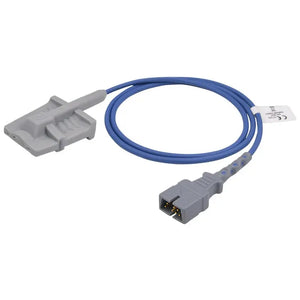
4. Use quality-verified accessories. While display problems are primarily internal monitor issues, faulty accessories can contribute to system instability. A damaged ECG cable or failing SpO2 sensor feeding corrupted data can overload a module processor, contributing to system hangs and freezes. Using certified compatible medical sensors and medical cables from quality-audited manufacturers reduces this risk. For SpO2 specifically, here's how every SpO2 sensor is bench-tested before shipment to confirm a clean optical signal.
5. Accessory replacement on schedule. Worn ECG lead wires with degraded shielding, cracked NIBP hoses, and aging SpO2 sensors with weakened optical components can all generate erratic data signals. Follow a structured accessory replacement schedule to keep your signal chain clean.
6. Staff training on basic troubleshooting. Empowering nurses and RTs to perform the first four steps of display troubleshooting (power check, brightness check, reboot, backup monitor) reduces Biomed response burden and—most importantly—minimizes the time patients spend unmonitored.
The Role of Accessories in Monitor Stability
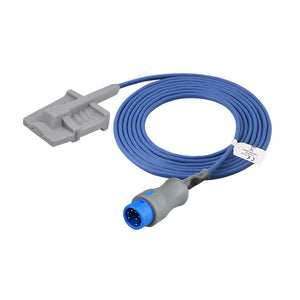
Modern patient monitors use modular architecture—each parameter (SpO2, ECG, NIBP, temperature, EtCO2) has its own measurement module. Each module processes data from its connected monitoring accessories and feeds it to the main control board for display. When a module receives corrupted or erratic data from a damaged accessory, it can cause that module to hang—and in some architectures, a hung module cascades into a system-wide freeze.
This is why keeping your accessory inventory in good condition matters not just for accurate readings, but for overall monitor reliability. Knowing which cables your monitor needs and stocking the correct replacements prevents both signal failures and system instability. If you're weighing non-OEM spares, it helps to be clear on what "compatible" actually means beyond a connector that fits.
💡 MedLinket Engineering Note: Accessory-Induced System Hangs
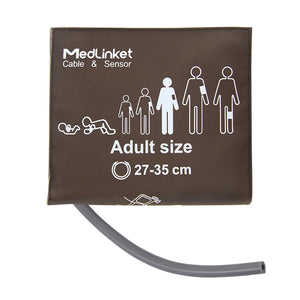
In our experience supporting 2,000+ hospitals, approximately 15–20% of recurring "frozen monitor" reports are ultimately traced to a faulty accessory rather than the monitor itself. The most common culprits are ECG cables with intermittent internal wire breaks (causing erratic data bursts that overwhelm the ECG module processor) and SpO2 sensors with degraded photodetectors (generating noise signals). MedLinket tests every ECG cable, SpO2 sensor, and NIBP cuff for signal integrity and connector fit against original manufacturer specifications—because a single faulty accessory can compromise an entire monitoring system. See how connector fit and signal integrity are verified against OEM specs for the bench process behind that claim.
Keep one known-good spare of each high-traffic accessory on hand so you can isolate a suspect cable or sensor in minutes—exactly the swap test recommended below.
About MedLinket — Reliable Patient Monitor Accessories Since 2004
| 🏭 Founded | 2004 · Shenzhen, China (NEEQ: 833505) |
| 🏭 Manufacturing | 3 self-owned factories (Shenzhen, Shaoguan, Indonesia) · 3,500+ molds · 16,651+ SKUs |
| 📋 Certifications | ISO 13485 · FDA 510(k) (19 clearances) · CE (48 Class II) · NMPA · MDSAP |
| 🌍 Global Reach | 120+ countries · 2,000+ hospitals · 30+ compatible monitor brands |
| 🔬 Quality | 100% outgoing inspection · $5M product liability insurance · OEM partner to leading brands |
| 🔗 Compatibility | Philips, GE, Mindray, Dräger, Masimo, Nellcor, Nihon Kohden, and 23+ more |
If you're vetting a supplier rather than just a part, here's what FDA 510(k), ISO 13485 and the $5M liability figure actually mean in practice — the difference between a certificate on file and verified, audited compliance.
Frequently Asked Questions
Q: The monitor's power LED is on, but the screen is completely black. What does this mean?
This typically indicates the monitor is receiving power and the electronics are running, but the display itself has failed—a backlight failure, inverter board fault, or disconnected internal ribbon cable. Try the brightness adjustment first. If that does not help, this requires Biomed service. If the monitor has a VGA output, connecting an external display can confirm whether the issue is the screen or the main control board.
Q: How can I tell the difference between a frozen screen and a very stable patient?
Look at the ECG waveform—it should always be actively scrolling across the screen. Even the most stable patient produces a continuously moving ECG trace. If the waveform has stopped scrolling, the screen is frozen. Also check the on-screen clock and try touching the screen. A non-responsive interface confirms a freeze.
Q: Is it safe to reboot a patient monitor while a patient is connected?
A reboot temporarily interrupts all monitoring. Before rebooting: (1) ensure a backup monitoring method is in place (second monitor, manual vitals, or direct observation); (2) inform the nurse or physician; (3) document the monitoring gap. For critically ill patients, always have a backup monitor running simultaneously before rebooting.
Q: Our monitors flicker only in one specific room. What could cause this?
Location-specific flickering strongly indicates electromagnetic interference or power quality issues. Check for nearby high-current equipment (electrosurgical units, MRI, X-ray), improperly grounded outlets, or an overloaded circuit. Report to both Biomed and Facilities Engineering—it requires an electrical environment assessment, not a monitor repair. This same type of EMI can also cause false alarms on vital sign parameters.
Q: How often should patient monitors receive preventive maintenance?
Most manufacturers recommend annual PM inspections at minimum, with quarterly battery checks for portable units. High-use environments like ICUs and operating rooms may benefit from semi-annual PM cycles. For a complete schedule of when to replace each type of monitoring accessory, see the Accessory Replacement Schedule.
Q: Can a faulty accessory cause a monitor to freeze?
Yes. Modern monitors use modular architecture where each parameter module processes data from its connected accessories independently. A damaged ECG cable with an intermittent wire break or a failing SpO2 sensor with a degraded photodetector can generate erratic data that overloads the module processor—potentially cascading into a system-wide freeze. If you experience recurring freezes, try the "swap test": replace accessories one at a time with known-good spares from your verified compatible inventory. For Mindray/Edan fleets, common swap-test spares include the EA6252B 5-lead ECG cable ($56, 20% off) and the S0125D-L adult silicone soft SpO2 sensor ($56, 20% off).
Experiencing Recurring Monitor Issues? Start with the Accessories.
MedLinket provides FDA 510(k) cleared, CE certified, and ISO 13485 compliant patient monitor accessories compatible with 30+ brands. 100% outgoing quality inspection ensures signal integrity and connector fit.
Browse SpO2 Sensors → Browse ECG Cables →
Free compatibility verification: shopify@medlinket.com · WhatsApp: +852 6467 3105
📚 Continue Reading: Hospital Monitor Reading & Accessories Guide
A. Parameter Basics:
What is SpO2? · Normal Heart Rate · ECG Numbers Explained · NIBP Readings · What is EtCO2?
B. Alarm Troubleshooting:
ECG Leads Off Alarm · Blood Pressure Alarm · False Alarm Prevention
C. Equipment Troubleshooting:
Monitor Shows No Reading · Display Problems (You are here) · Monitor Not Turning On · When to Call Biomed
D. Accessories:
Accessories by Parameter · Identify Your Cables · OEM vs. Compatible · Replacement Schedule